How to Switch From Jobber to a Simpler CRM (Step by Step)
A practical migration checklist: what to export from Jobber, what you'll actually miss, and how to move your open quotes to a lightweight contractor CRM in an afternoon.
If you've decided you're paying for scheduling and dispatching you don't use, switching is straightforward. The risk isn't the data — it's leaving the platform before you've replaced the parts you genuinely relied on. Work through this in order.
Step 1: list what you actually use
Open Jobber and write down every feature you touched in the last 30 days. Most small shops end up with a short list: quotes, client records, quote follow-up, and maybe invoicing. Anything not on that list isn't a migration problem.
Step 2: decide where invoicing and payments go
This is the one that catches people out. A lightweight CRM won't invoice. If Jobber is your invoicing and card-payment system, plan a replacement first — an accounting tool or your bank's invoicing is usually enough for a one- or two-person shop.
Step 3: export your data
From Jobber, export the CSVs you'll need before your billing period ends:
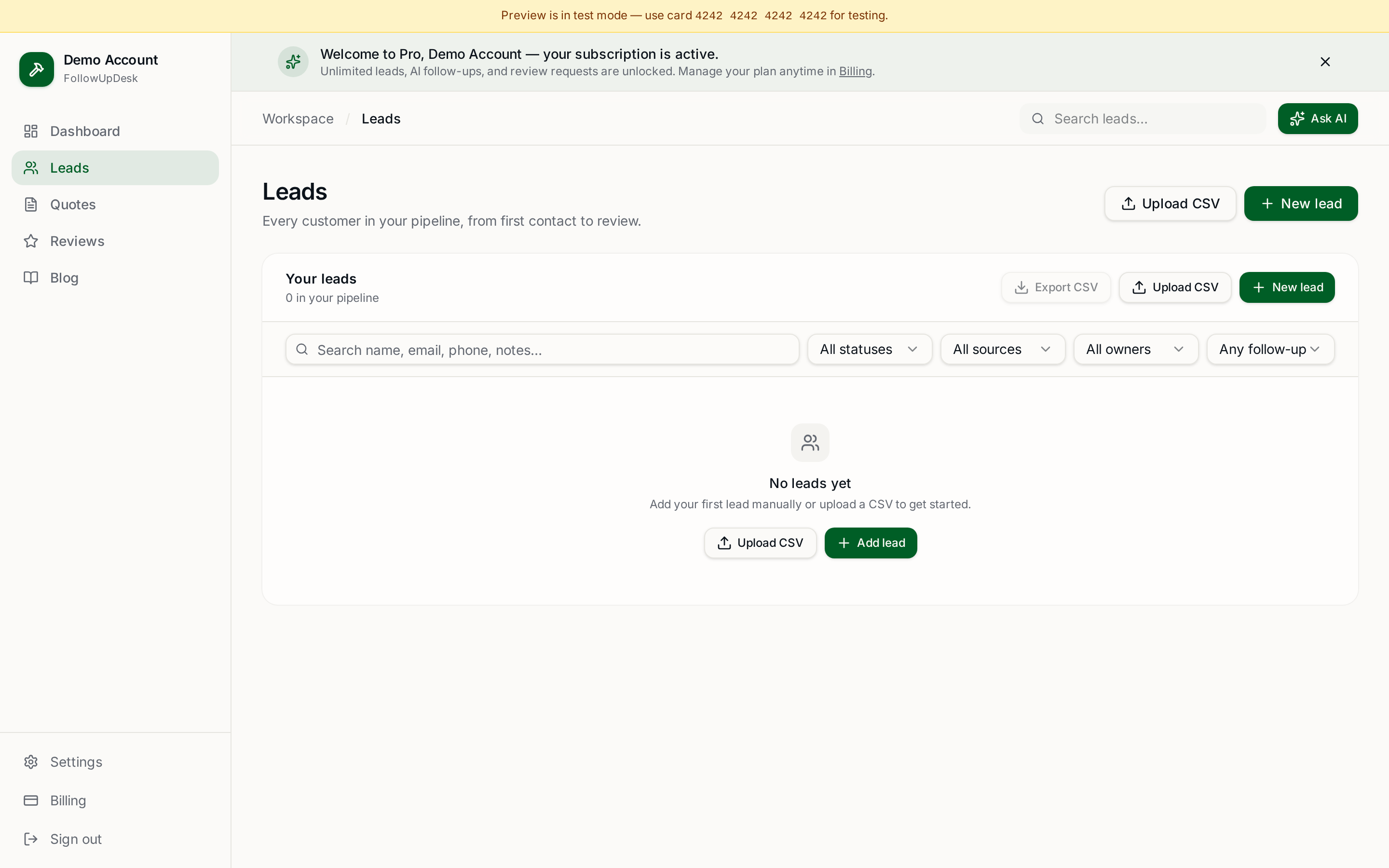
- Clients (name, phone, email, address)
- Quotes and estimates (customer, value, date sent, status)
- Jobs and invoice history, for your records
- Any attached photos or documents you still need
Download everything to a folder on your own computer, not just cloud links inside Jobber.
Step 4: separate open from closed
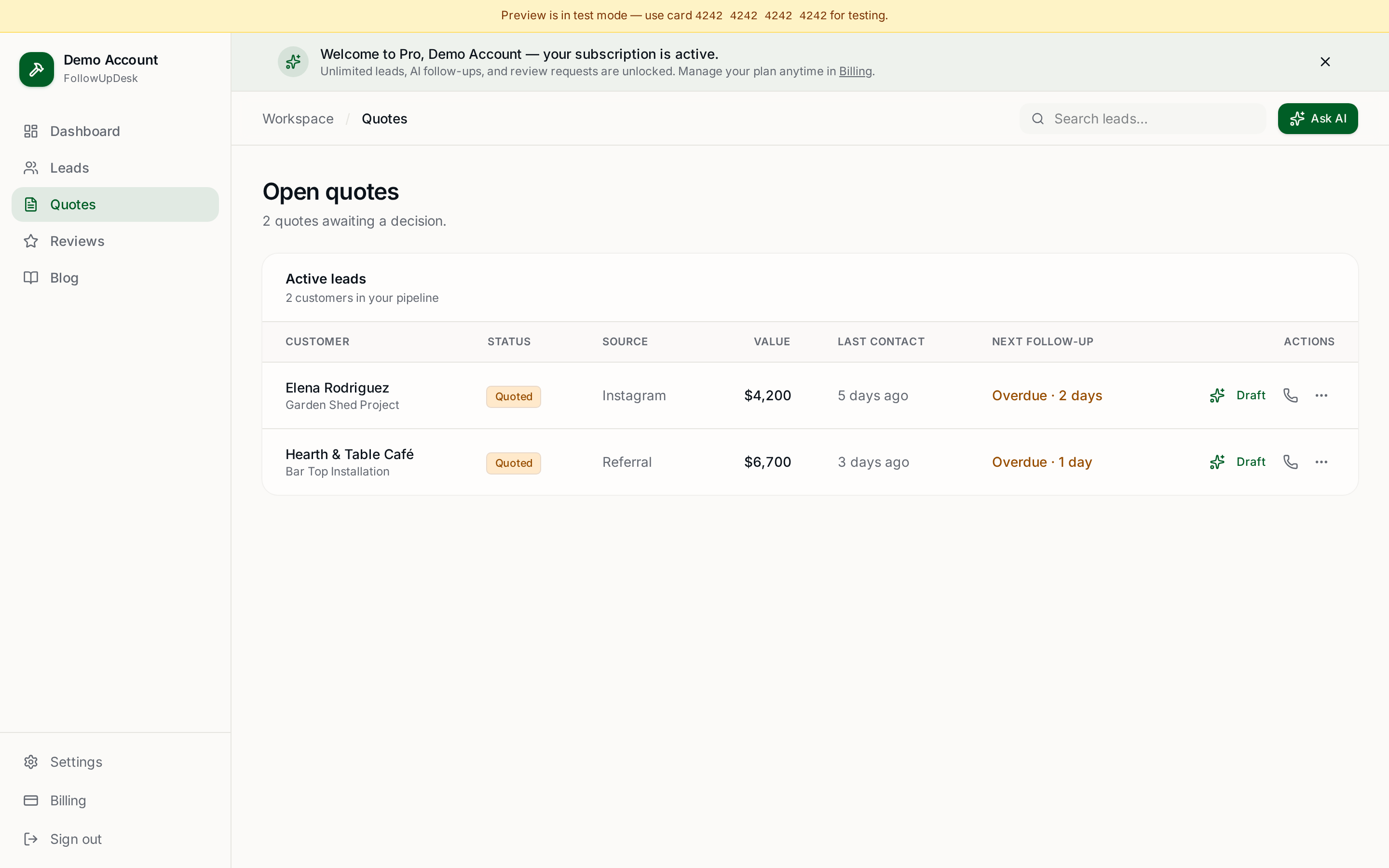
Split the quote export into three groups: won, lost, and still open. Only the still-open ones need to move into your new CRM immediately — those are live money. Won and lost quotes are history you keep for reference.
Step 5: import and set follow-up dates
Import the open quotes into the new CRM. Every single one needs a next follow-up date, even the ones that are three weeks old — especially those. In FollowUpDesk the 3 / 7 / 14 day cadence applies automatically on import, so old quotes show up as overdue on day one.
Step 6: run both for two weeks
Don't cancel yet. Work the new pipeline while Jobber is still live, so you can go back if something you forgot turns out to matter. Two weeks covers a full quoting cycle for most trades.
Step 7: turn off duplicate automations, then cancel
Switch off Jobber's quote reminders so customers don't get two messages. Once you've had a clean fortnight, cancel — Jobber is month-to-month, so there's no exit penalty.
What you will miss
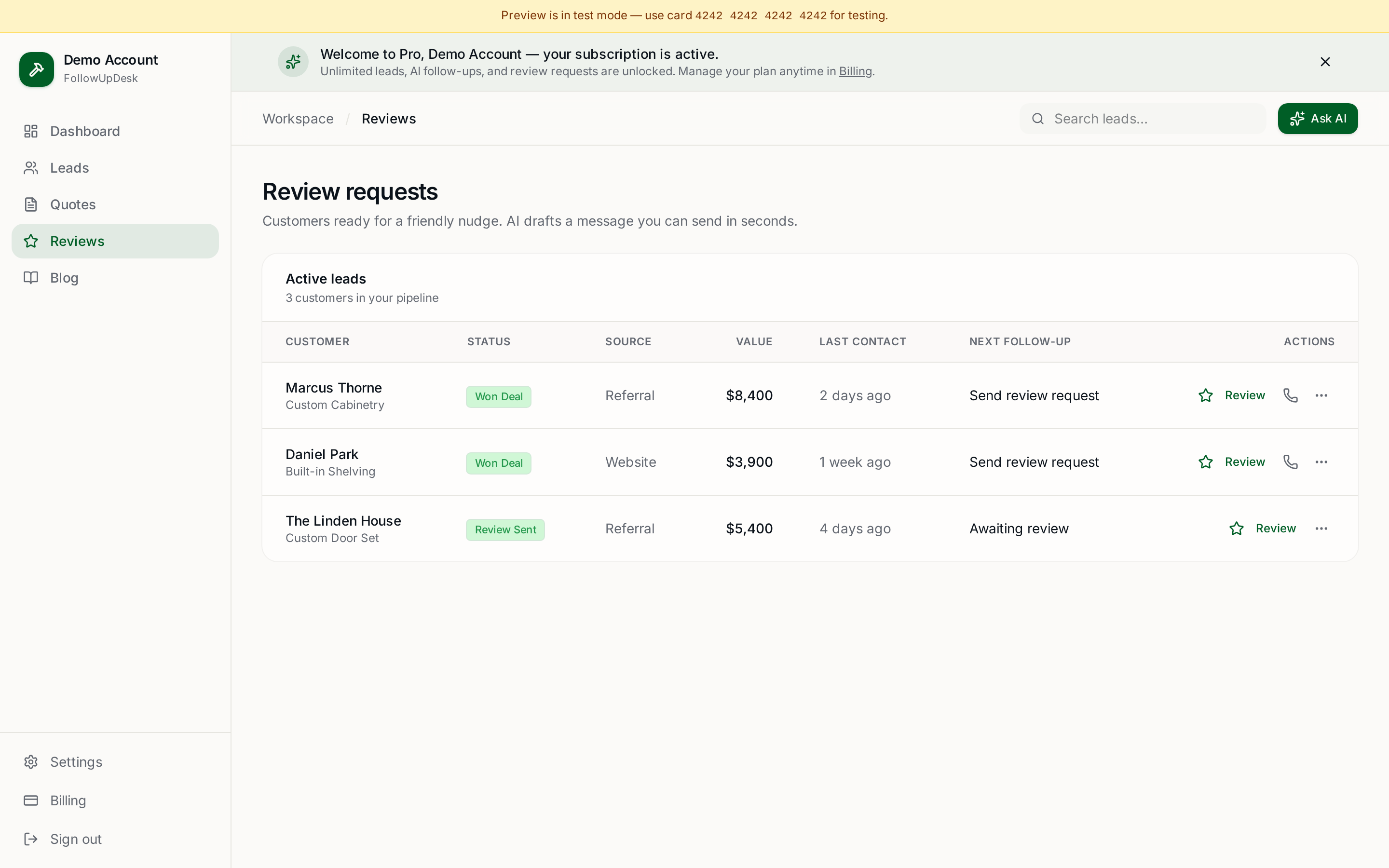
Be realistic: no dispatch board, no client portal, no in-app payments, no job costing. If any of those turn out to be load-bearing for your business, the honest answer is to stay on a field-service platform. Switching to a simpler CRM is a win only when you genuinely weren't using the rest.
Related: Jobber alternatives · Jobber alternative for solo contractors · can I use FollowUpDesk with Jobber? · contractor CRM without scheduling.
See it in FollowUpDesk
Get started — $29/mo →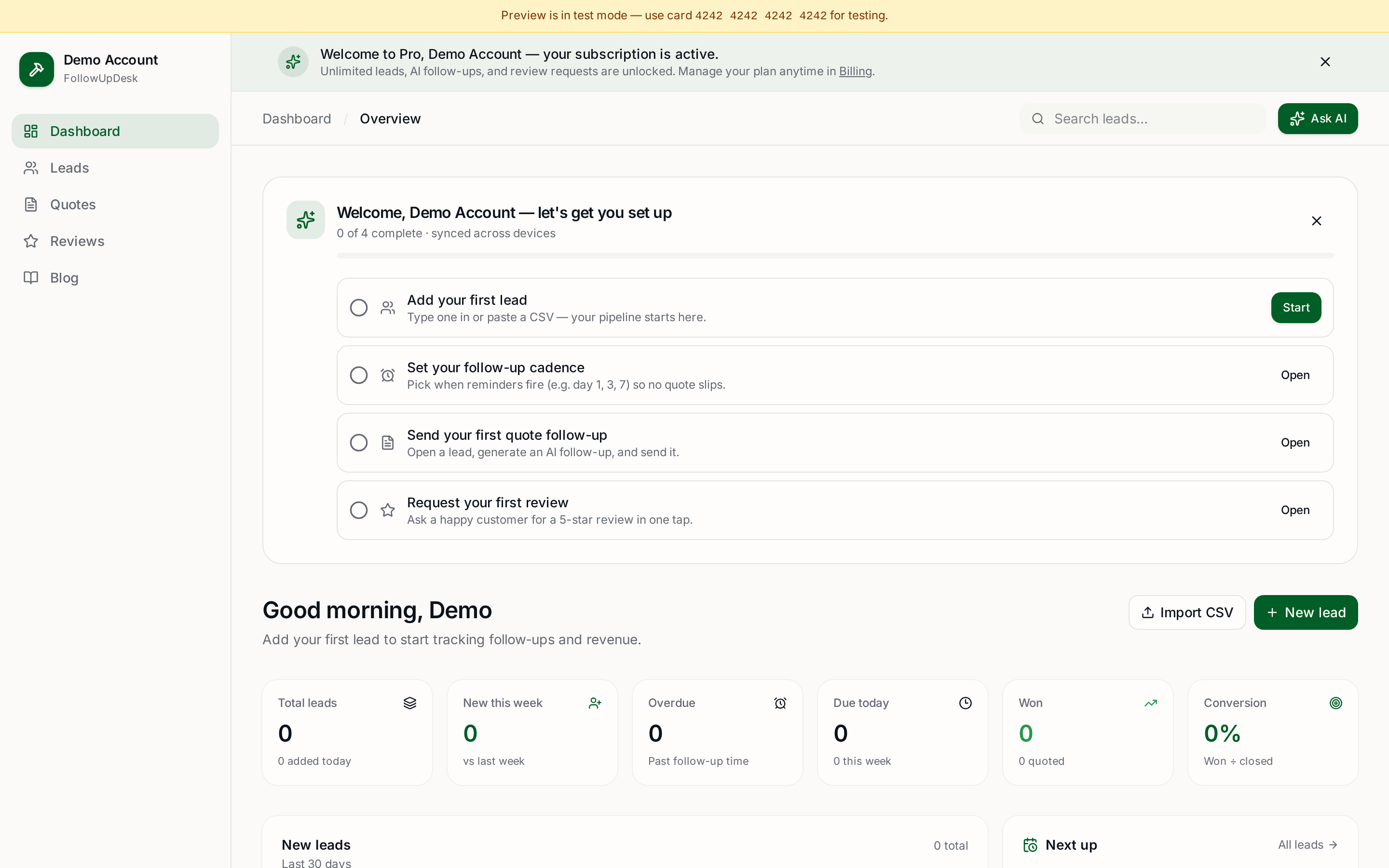
Skip the manual work — these are free, no card required
Frequently asked questions
How do I export my leads and quotes from Jobber?▾
Use Jobber's CSV exports for clients, quotes and invoices before your billing period ends, and save the files locally. Export photos and documents separately if you still need them.
Will I lose my history if I leave Jobber?▾
Not if you export first. Keep your won and lost quote history as CSVs for reference and only migrate the still-open quotes into your new CRM.
How long does switching take?▾
An afternoon for the data, plus about two weeks running both systems in parallel before you cancel.
What will I lose by moving to a simpler CRM?▾
Scheduling, dispatching, invoicing, payments and client portals. If you rely on those, stay on a full field-service platform.
Is Jobber hard to cancel?▾
It's a month-to-month subscription, so cancellation is straightforward once you've exported your data.
Get the full FollowUpDesk CRM — $29/month
One pipeline for every lead, AI follow-ups for every quote, review requests on autopilot. Cancel in one click.
Free tools require no card · Pro is $29/month, cancel anytime