How to track leads in Google Sheets (step-by-step template)
A no-fluff guide to tracking leads in Google Sheets — columns, conditional formatting, and the one formula that flags overdue follow-ups.
If you want to know how to track leads in Google Sheets without overengineering it, this is the shortest path that still works.
Step 1 — Create the sheet
Open Google Sheets, name the tab Leads 2026. Add headers in row 1: Date In, Name, Phone, Email, Source, Job, Quote $, Status, Last Contact, Next Follow-up, Notes.
Step 2 — Lock the status column
Select column H (Status). Data → Data validation → Dropdown → enter: New, Quoted, Follow-up, Won, Lost. This stops typos breaking your filters later.
Step 3 — Add the follow-up formula
In column J (Next Follow-up), paste a nested IF that returns Last Contact + 3 days when Status is Quoted, Last Contact + 7 days when Status is Follow-up, and Date In + 1 day when Status is New. Drag it down the column. The cell auto-calculates the next nudge date for every lead.
Step 4 — Highlight overdue rows
Select rows 2:1000. Format → Conditional formatting → Custom formula. Use a formula that checks Next Follow-up is non-empty, earlier than today, and Status isn't Won or Lost. Pick a red fill. Now every overdue lead glows red.
Step 5 — Sort by Next Follow-up
Data → Create a filter → sort column J ascending. The top of your sheet is now always the lead you should be touching today.
What breaks at ~30 open leads
Two things: people forget to update Last Contact, and the sheet stops being the single source of truth (deals start living in texts again). At that point sheets stop saving you time.
The drop-in upgrade
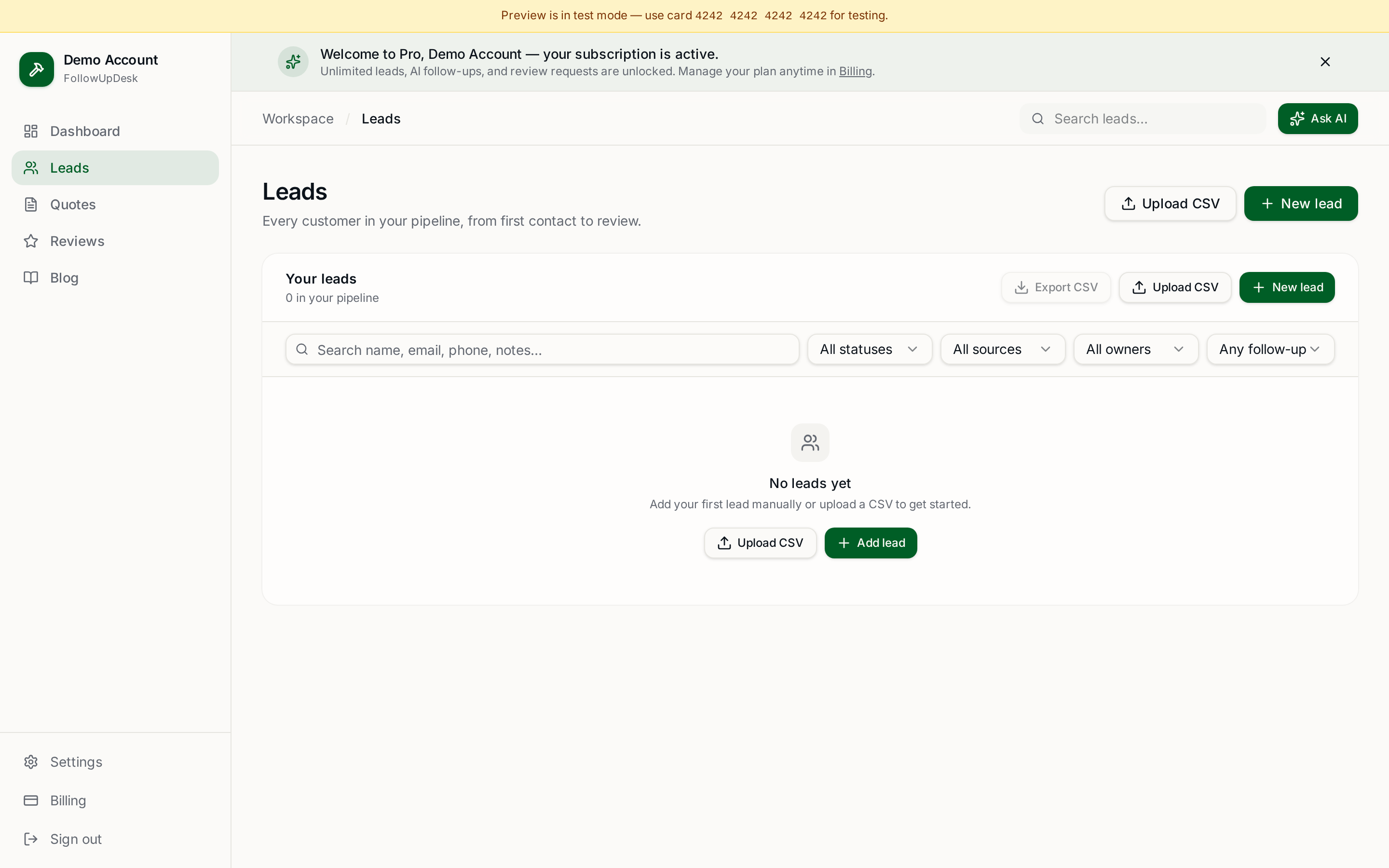
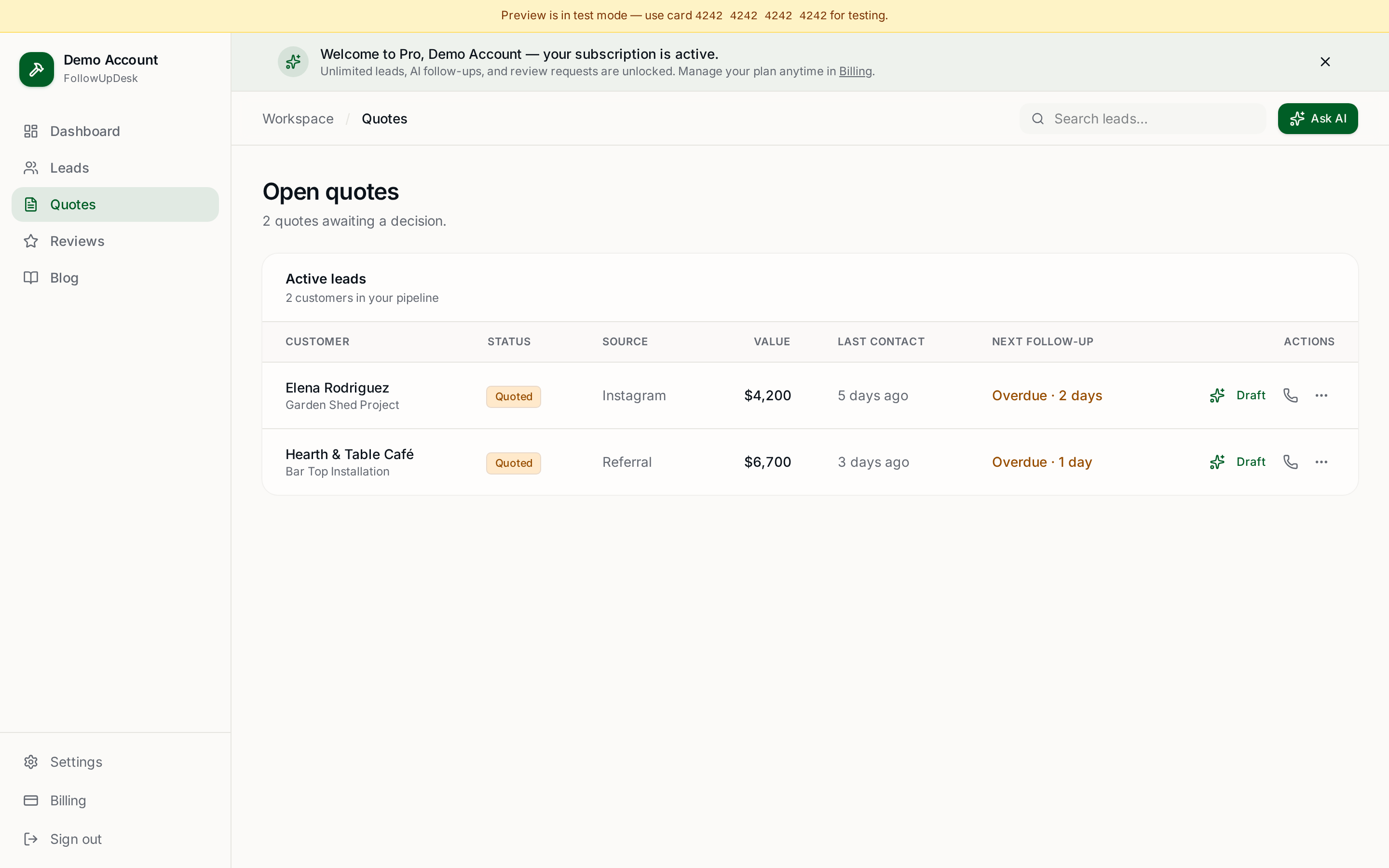
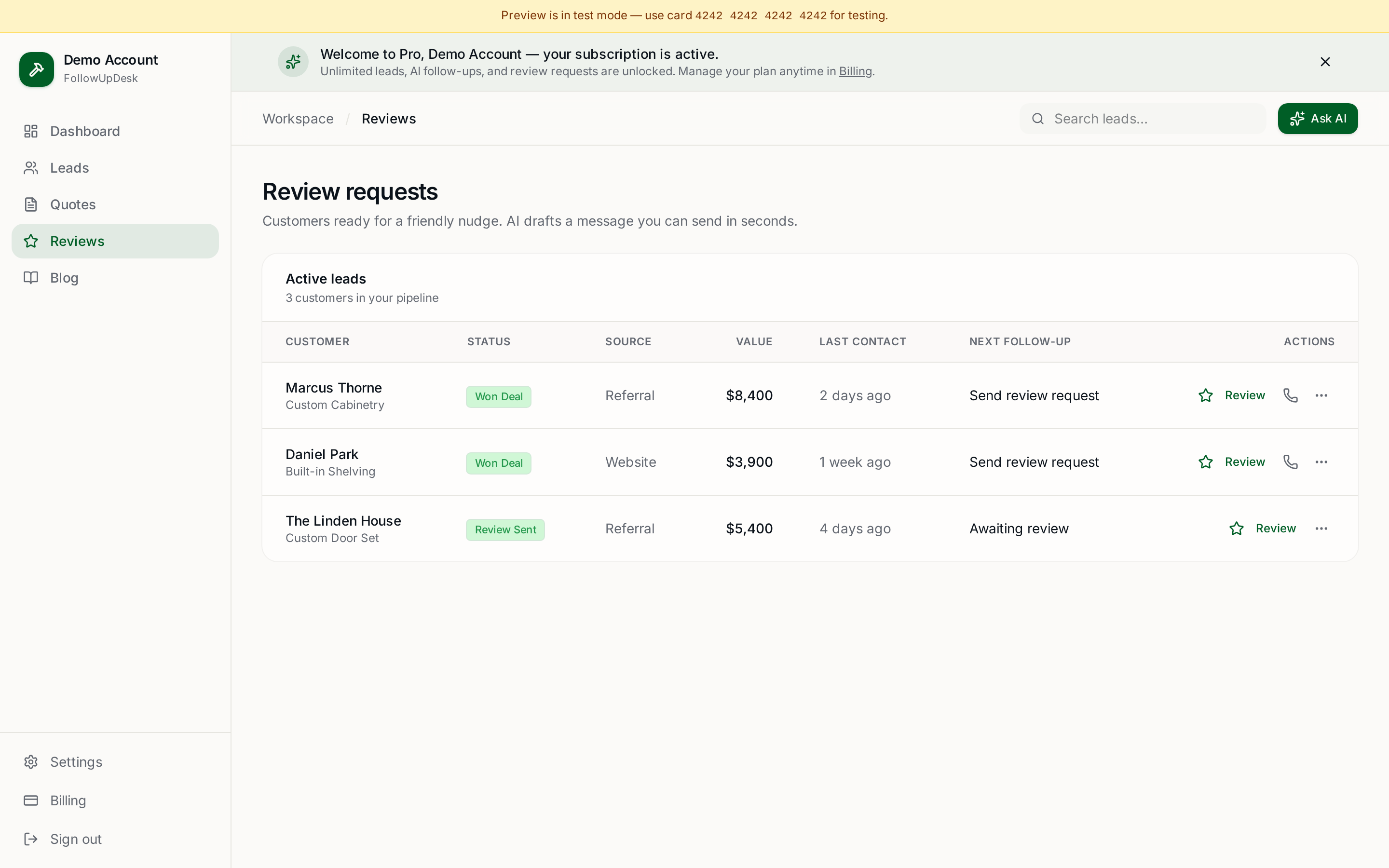
Using a spreadsheet? Upload it into FollowUpDesk and see overdue follow-ups automatically. Same columns you already built — but the reminders, dashboards, and review requests run themselves. Try it at /auth.
See it in FollowUpDesk
Get started — $29/mo →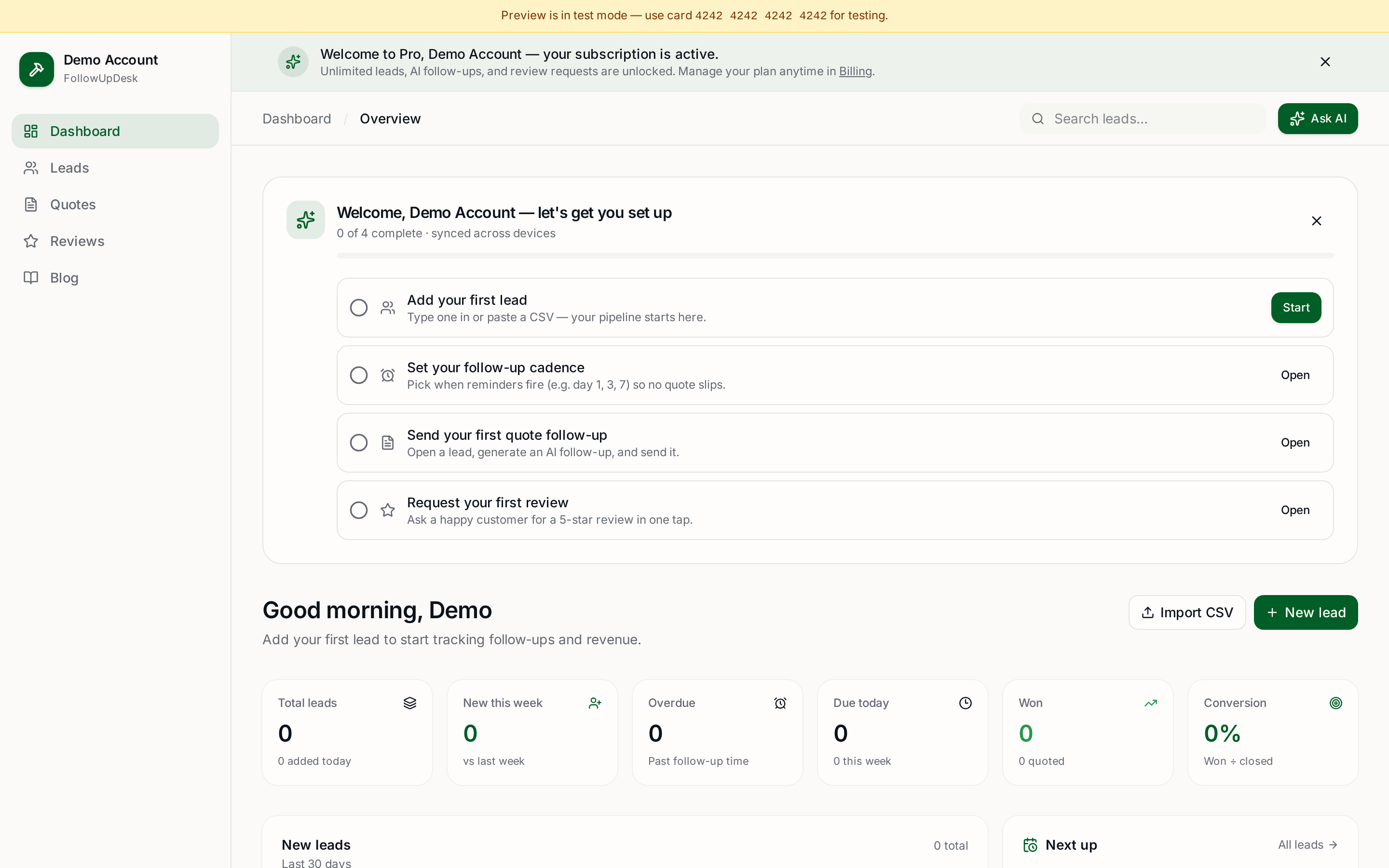
Skip the manual work — these are free, no card required
Get the full FollowUpDesk CRM — $29/month
One pipeline for every lead, AI follow-ups for every quote, review requests on autopilot. Cancel in one click.
Free tools require no card · Pro is $29/month, cancel anytime